
Description
Megapixel built HELIOS® to make day two operations easy for operators. When pixels fail, such as being stuck on or off due to degradation or physical damage, HELIOS® has the ability to automatically hide the faults to keep the screen looking its best without the need to replace physical LED tiles. Certain tiles, such as Ventana, are engineered to identify and adjust for faulty pixels – providing a self-healing feature for the display. HELIOS® now automates this detection and correction through a feature called “Pixel error detection”.
NOTE: Not all tiles support this feature. Please consult the tile manufacturer to verify. Getting Started
There are two methods in the HELIOS® UI to activate the Pixel error detection feature:
Automatic compensation (available in HELIOS® v26.04.0 or later)
Manually via the Pixel error detection report
Automatic compensation
The Settings menu within the HELIOS® UI allows the user to choose whether or not the system should run the automatic compensation:
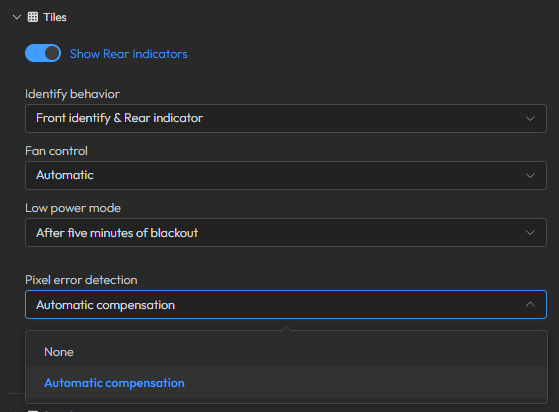
The menu above can be found in Settings -> Tiles
By selecting None the system will not automate the error detection process.
By selecting Automatic compensation, the error detection process will run immediately upon selection and each time a new tile is discovered by HELIOS®.
Note: Pixel error detection re-runs only when a tile reconnects to HELIOS® after a reboot or power cycle, not on intermittent dropouts or cable reconnections.
Manual triggers
An alternate option is a manual trigger located in the Health -> Reports -> “Pixel error detection” report. This shows a list of all panels connected to the system, and whether the faulty/bad pixel compensation is supported for the tiles in the display. There are two columns, “Bad pixel removal” and “Pixel error detection”.
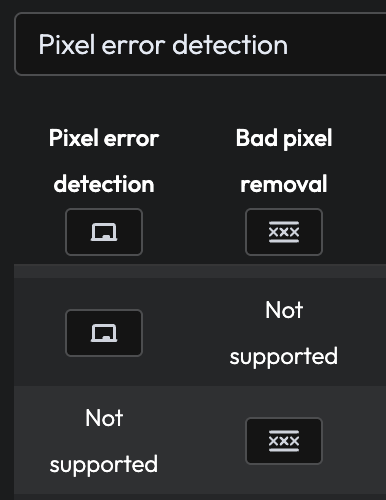
The report above can be found in Health -> Reports
Clicking the remove button starts the process immediately. The Bad pixel removal process itself is very fast and usually completes in less than 1 second while the Pixel error detection process can take up to 30 seconds to complete.
If needed, there is a toggle in the report to enable or disable the compensation. This will allow for an incorrectly identified fault to be forced back or for a demonstration to toggle on/off.
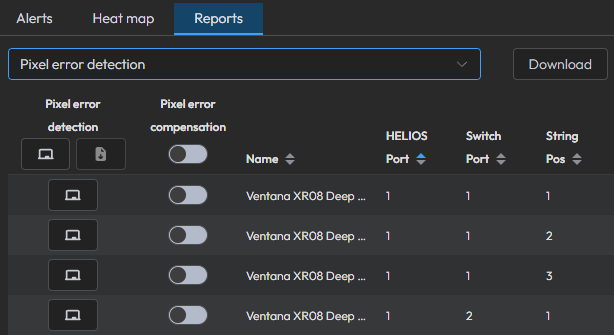
These toggles can be found in Health -> Reports
Considerations
There are important considerations when using this feature.
Visual artifacts: When this feature is actively running, there can be visual artifacts on the screen. The UI displays a warning so operators are aware that visual artifacts may appear on screen during the process.

Unsupported tiles: Not all tiles support the error detection feature. Contact your panel manufacturer to find out if they support Pixel error detection. The HELIOS® UI will also make the user aware of whether the tiles support the feature or not.
