Description
This guide outlines the causes of and preventive measures for the HELIOS alert: Sync Mismatch.
Identifying Sync Mismatch
A Sync Mismatch alert can be identified when shown under the Health tab in HELIOS. This alert will appear in the following sections:
Input > Input
Input > Nanosync
Health > Alerts


What Do These Alerts Indicate?
The Sync Mismatch alert indicates a discrepancy between the timing of frames received by HELIOS from the content source and the reference clock, indicating a misalignment in synchronization rates. Commonly, this occurs when users are stitching inputs from multiple content source devices into a single canvas. Additionally, the issue may stem from upstream devices, such as switchers, amplifiers, adapters, or other equipment, which could be causing synchronization issues.
Spark Lines
HELIOS release v25.11 incorporates sync spark lines under the stitched input settings. The spark line graph provides a quick visual summary of how the timing offset of each input signal compares to the system reference over time. It helps users immediately spot drift, jitter, or timing anomalies that could impact seamless video stitching or multi-source displays. A shifting sync offset is a reliable indication that the source is not locked. Stable, flat lines indicate good timing alignment, while spikes or trends indicate issues like loss of sync or unstable sources. Below are a few examples of spark lines showing a drifting or out of sync signal.
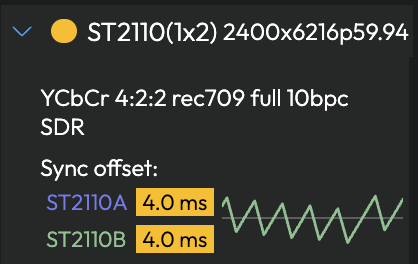
Example 1: Two inputs with a drifting offset. At the time of capture, the sync offset was 4.0ms, but this offset was drifting over time, as shown by the jagged spark lines. Both the A stream and B stream were equally offset, resulting in both lines being overlayed on top of each other. The horizontal gray line is the sync signal that HELIOS is locked to.
Example 2: Three inputs, two in sync and one drifting. Based on the spark line, we can see inputs A and B are in sync with the sync signal (horizontal gray line) and input C is drifting out of sync, shown by the declining brown line in the spark chart. 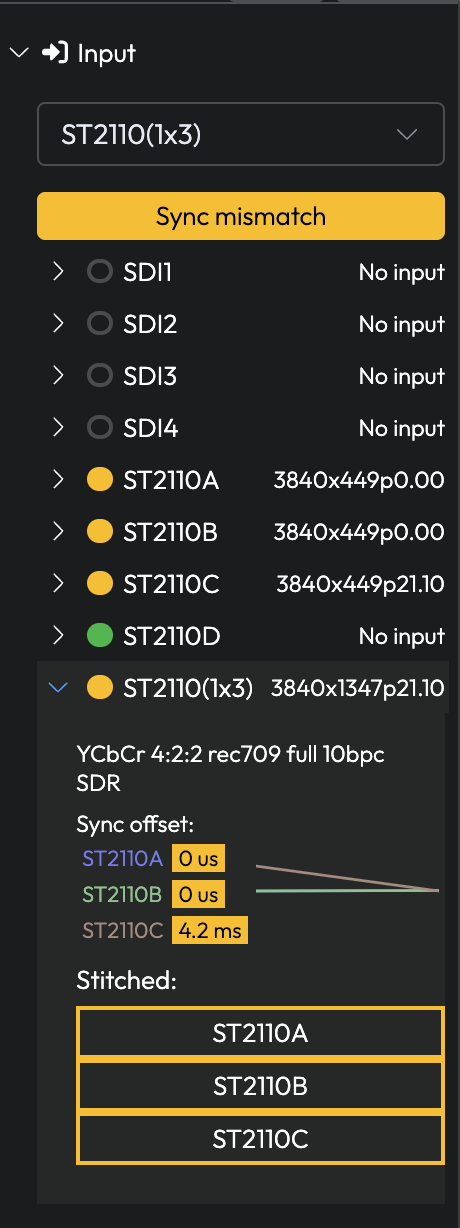
Troubleshooting
To resolve this issue, follow these steps:
Inspect the Content Source: Start by examining the content source and ensure that no intermediate devices are affecting the synchronization. A common troubleshooting step is to connect the content source directly to HELIOS, bypassing any intermediate equipment.
Verify Sync Sources: Ensure that both HELIOS and the content source are synchronized using a proper sync reference. HELIOS supports tri-level and black burst sync via BNC connector, and PTP via Ethernet LAN management port.
Check Sync Offset Values: Navigate to Input page > Input and review the Sync Offset values. The sync offset indicates the deviation between the input’s sync and the system’s sync. If HELIOS is locked to the input, the value should be close to zero. For setups utilizing external genlock, the value should be a fixed (non-changing) number, and in the microseconds (µs) range, rather than milliseconds (ms) range.
Remove any upstream devices: DAs, splitters, signal duplicators, or other upstream devices could be causing sync signal issues.
Check cables: Long sync cables or low quality cables could also cause sync signal issues.
What about using sync offset to compensate?
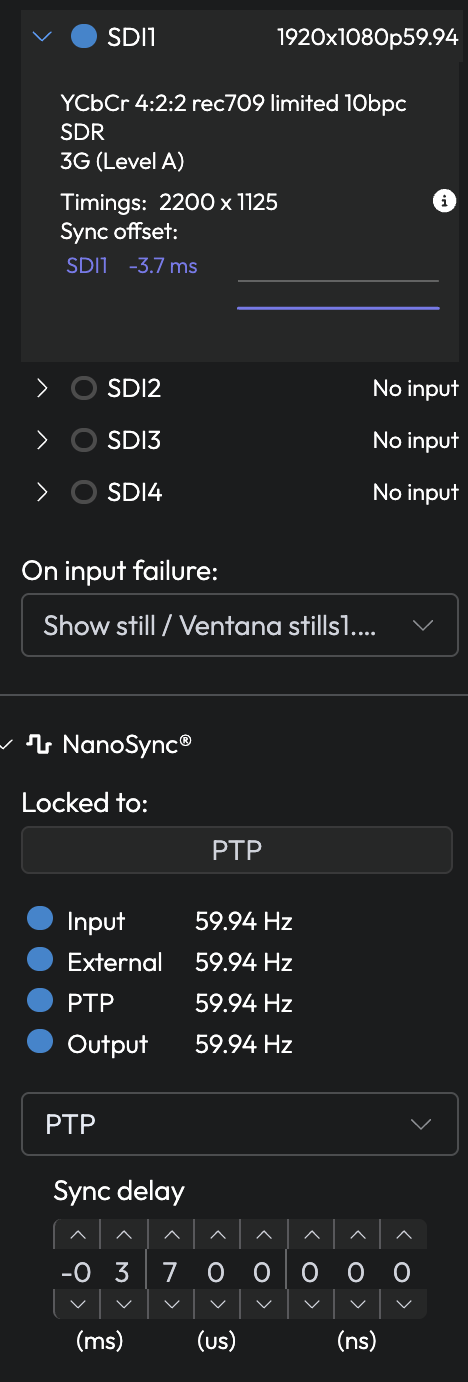
It might seem like a good idea to adjust the NanoSync > sync delay settings to compensate for sync offsets, and cancel this offset out. However, sync delay adjusts HELIOS' output sync timing relative to the incoming sync. While the spark line is showing the input sync relative to the incoming signal. Users will have to adjust the delay on the sync input and/or the source signal to solve the issue.
If you continue to experience issues, please reach out to support@megapixelvr.com and include your system's log files for further assistance.